Guide 1 of 6
Download the CourtFlow Events ZIP file and upload it to your WordPress site. Takes about two minutes.
You can get the file in either of two places:
Keep the file zipped. WordPress needs the .zip itself. If your Mac unzips downloads automatically (Safari does this by default), turn that off in Safari's settings or download with a different browser.
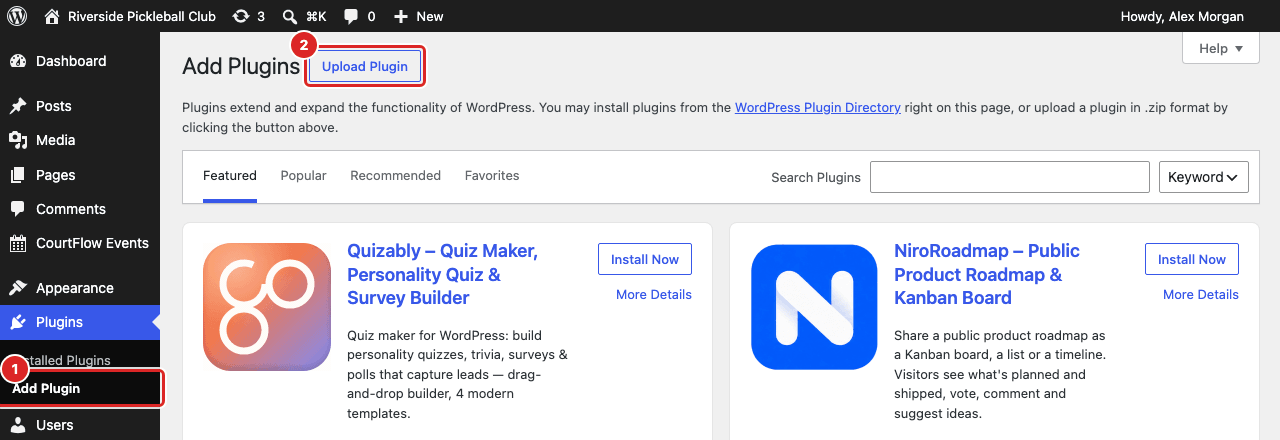
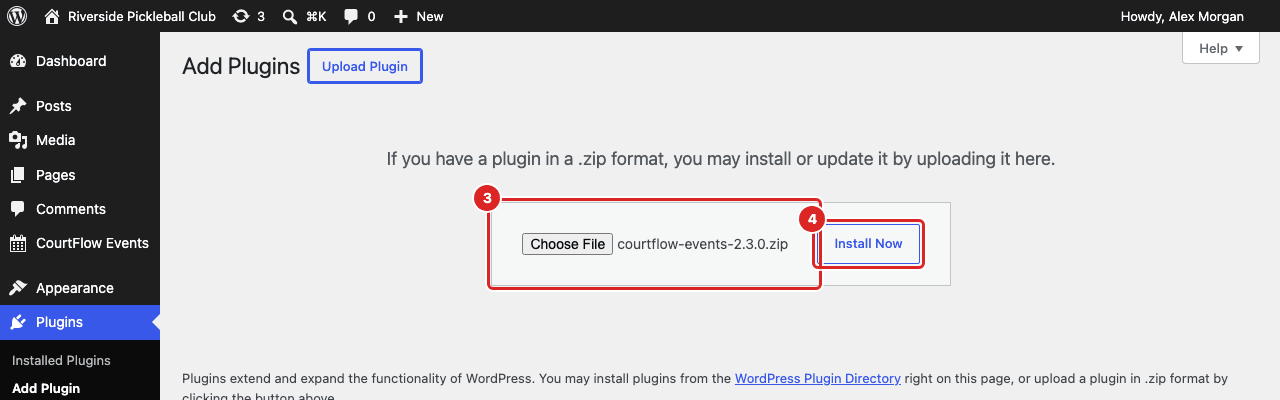
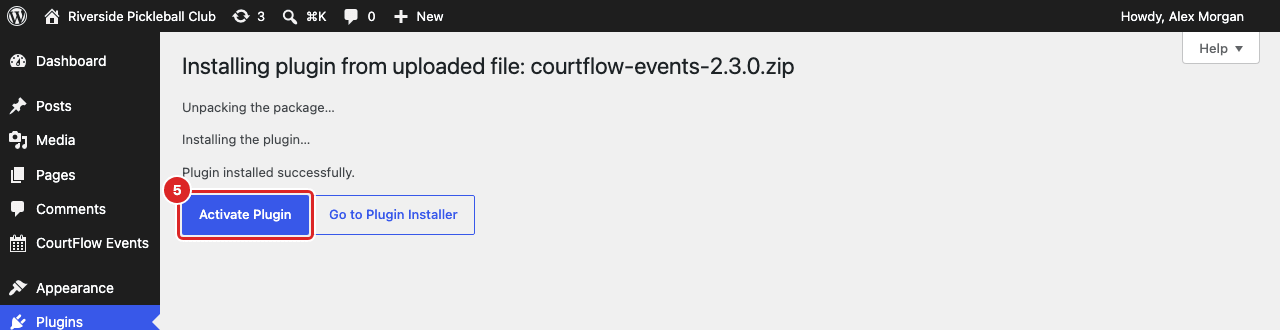
A new CourtFlow Events menu now appears in the left sidebar, with three pages: License, Settings and Event images.
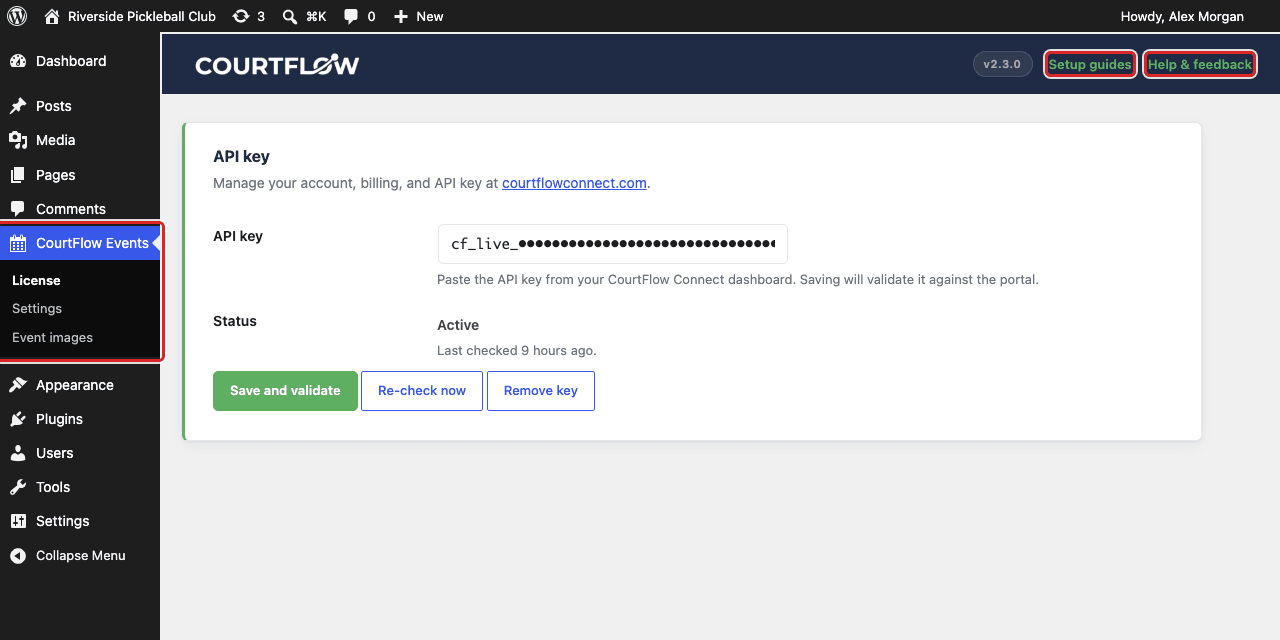
Each CourtFlow page has two links at the top right, next to the version number: Setup guides brings you back to these guides, and Help & feedback opens our support form. You'll find the same two links under CourtFlow Events on your Plugins page, where they're called Setup guides and Support.
If WordPress says the plugin is already installed, you're installing over an existing copy. That's fine, choose Replace current with uploaded. Never delete the plugin to reinstall it: deleting CourtFlow Events also deletes its settings, locations and event images.
Your events won't show yet. First activate your license.
Stuck on a step? Email [email protected] and tell us which guide and step you're on.
