Guide 2 of 6
Paste your license key into WordPress. Events only appear on your site once the key checks out.
Your key is in the welcome email we sent when you signed up, under Your License Key. It starts with cf_live_.
For security, your account page only shows the first few characters of the key. If you can't find the email, sign in to your account and click Reissue Key under License Key. The new key is shown once, so copy it right away.
Reissuing a key switches off the old one straight away. If CourtFlow is already running on your site, paste the new key in WordPress as soon as you reissue it.
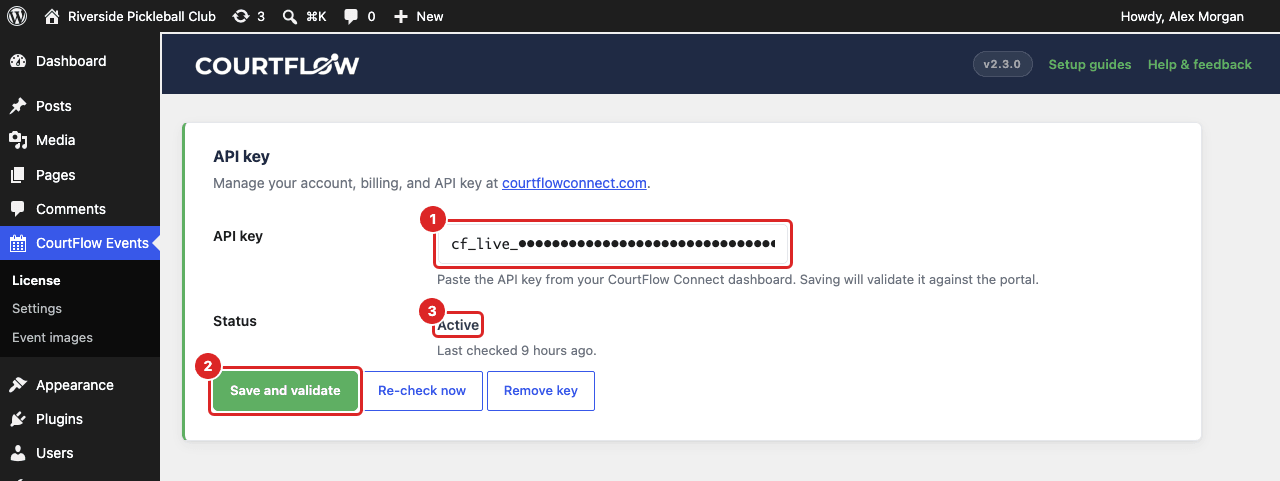
Until a key validates, this page shows a box that says You need an active license key to display events, with a Sign in to get my key button that opens your CourtFlow account.
The status is rechecked automatically once a day. To check it now, for example right after you've fixed a billing problem, click Re-check now.
Connect CourtReserve so CourtFlow can pull in your events.
Stuck on a step? Email [email protected] and tell us which guide and step you're on.
