Guide 3 of 6
Add each of your clubs as a location, enter its CourtReserve API username and password, and test the connection.
You need a CourtReserve plan that includes API access (currently Advance, Momentum or Enterprise). CourtReserve explains how to turn API access on in their help article, Set up API access integration.
In CourtReserve, the API settings are under Settings → Additional Features → Integrations. That's where you'll find the API username and API password for a club. Each club or location in CourtReserve has its own pair, so if you run two sites you'll have two usernames and two passwords.
Have those details ready, then switch to WordPress.
CourtReserve is a trademark of its owner. CourtFlow is an independent product and is not affiliated with, endorsed by, or sponsored by CourtReserve. (You'll see the same note at the top of the CourtFlow Settings page.)
In CourtFlow, a location is one CourtReserve club. Add one for each club you want to show events from.
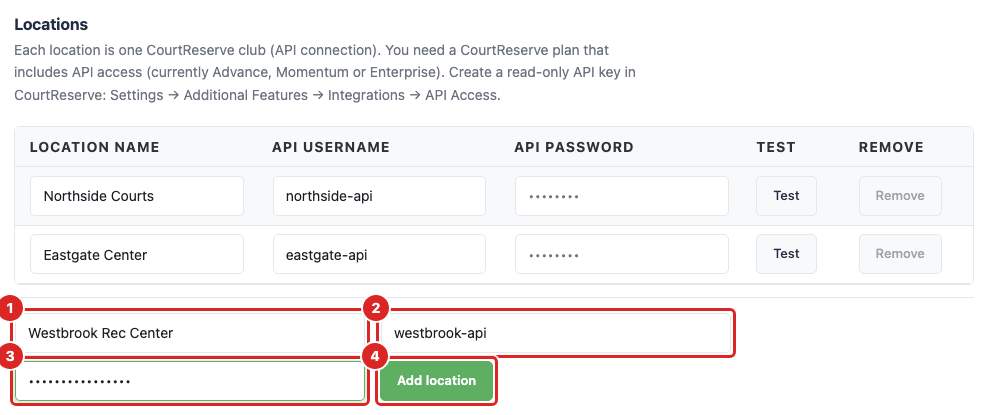
The location appears as a new row in the table. Its Test button stays greyed out until you save.
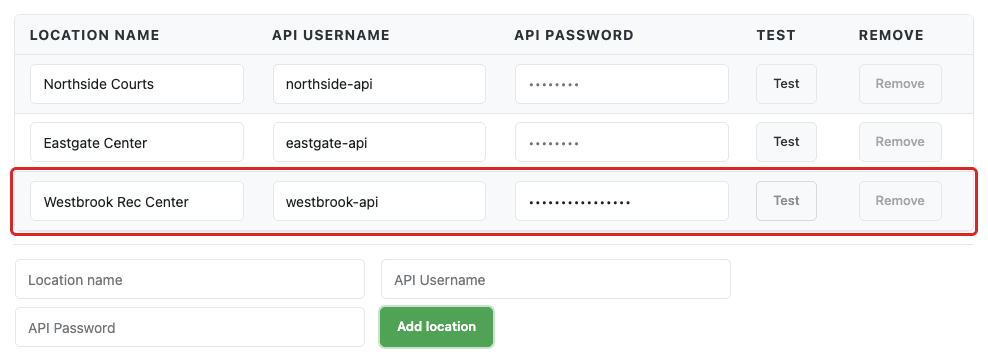
Repeat for any other clubs.
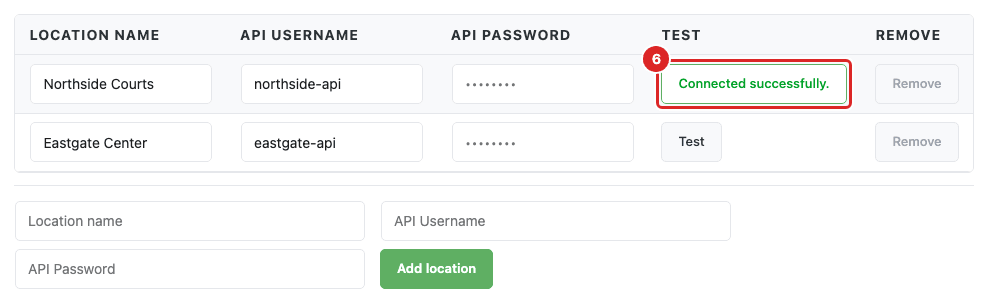
If the button shows an error instead, the username or password doesn't match what CourtReserve has. Copy both again from CourtReserve, paste them over the old ones, click Save setup, and test again. If it still fails, check with CourtReserve that API access is switched on for that club.
Stuck on a step? Email [email protected] and tell us which guide and step you're on.
