Guide 4 of 6

Add events to a page

Put your CourtReserve events on any page with the CourtFlow block, then choose how they look: carousel, category list, schedule or calendar.
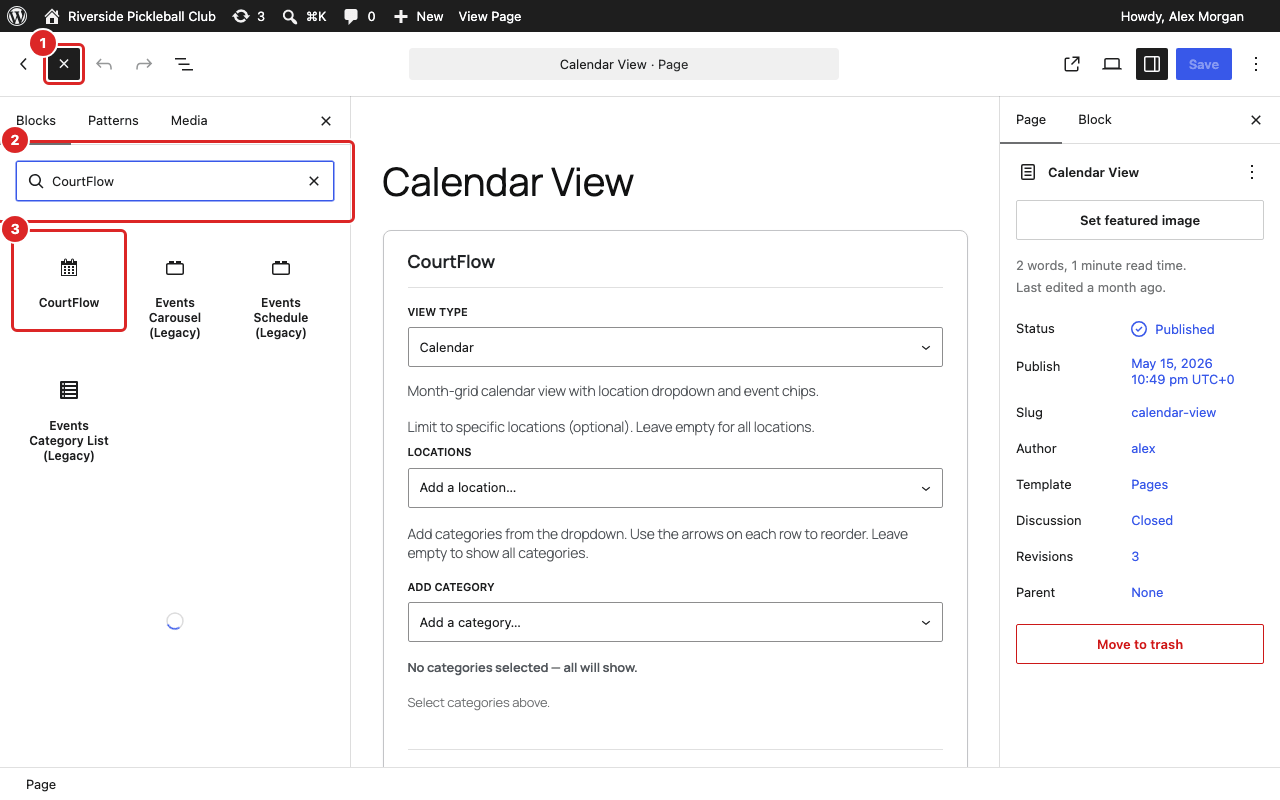
1. Add the CourtFlow block

  1. Open the page you want in the WordPress editor (Pages, then click the page), or create a new one.
  2. Click the blue + button at the top left to open the block library 1.
  3. Type CourtFlow in the search box 2.
  4. Click the block named CourtFlow 3, or drag it to where you want it on the page.
WordPress block editor with the block library open, CourtFlow typed in the search box and the CourtFlow block highlighted

You'll also see blocks marked (Legacy). They're there so older pages keep working. Use the plain CourtFlow block for anything new.

2. Choose the view and what to show

The block shows its settings right on the page while you edit.
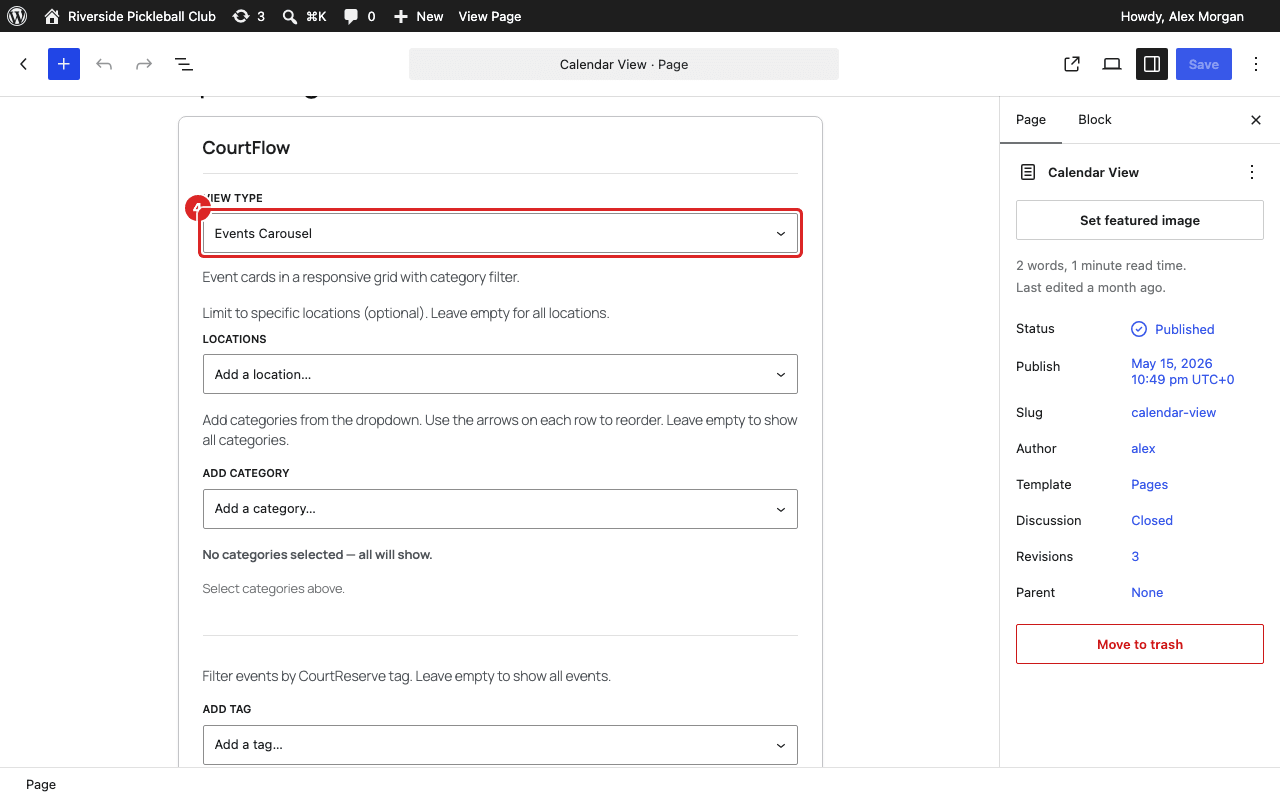
  1. Pick a View type 4: Events Carousel, Category List, Schedule or Calendar. Each one is shown further down this page.
  2. Optional: under Locations, add the clubs this page should show. Leave it empty to show every location.
  3. Optional: under Add category, pick the CourtReserve event categories to include. Leave it empty to show all of them. For most views you can use the arrows on each row to set the order of the category buttons.
  4. Optional: under Add tag, limit the block to events with certain CourtReserve tags. Turn Show tag badges on cards off if you don't want tags on the cards.
  5. Click Show preview to see the result inside the editor. Click Edit settings to go back.
  6. Click Save (or Publish for a new page).
CourtFlow block in the editor with the View type dropdown highlighted, followed by the Locations, Add category and Add tag pickers

The Category List view has one extra setting, Time range, for how far ahead to show events (from 30 days up to a year, or all future events). You can put more than one CourtFlow block on a page, for example a calendar with a carousel under it.

What each view looks like

These are what your visitors see. The Register and Join waitlist buttons take them to CourtReserve to sign up. Colors come from CourtFlow Events → Settings → Styles.

Events Carousel

Upcoming events as cards in a row that visitors can scroll through, with category buttons and location and tag filters above.
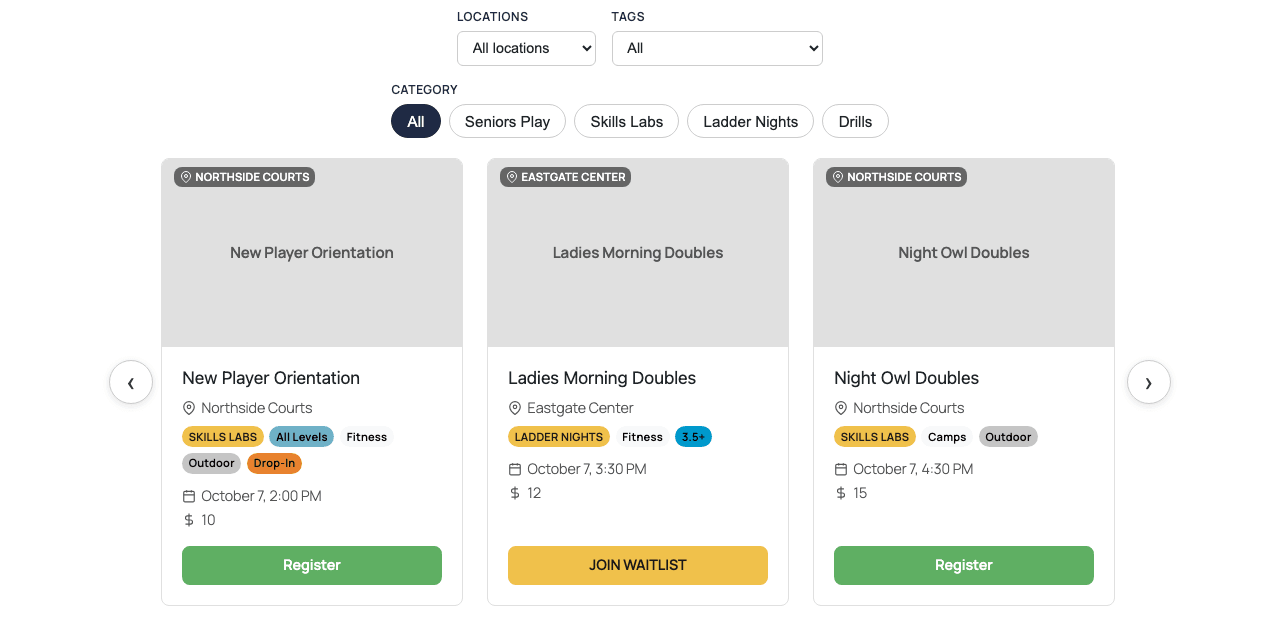
Events Carousel view: category buttons, location and tag filters, and three event cards with Register and Join waitlist buttons
Club, event and price details in these examples are made up.

Category List

A grid of event cards with location and tag filters. Good for a page that's all about one kind of event, like clinics or leagues.
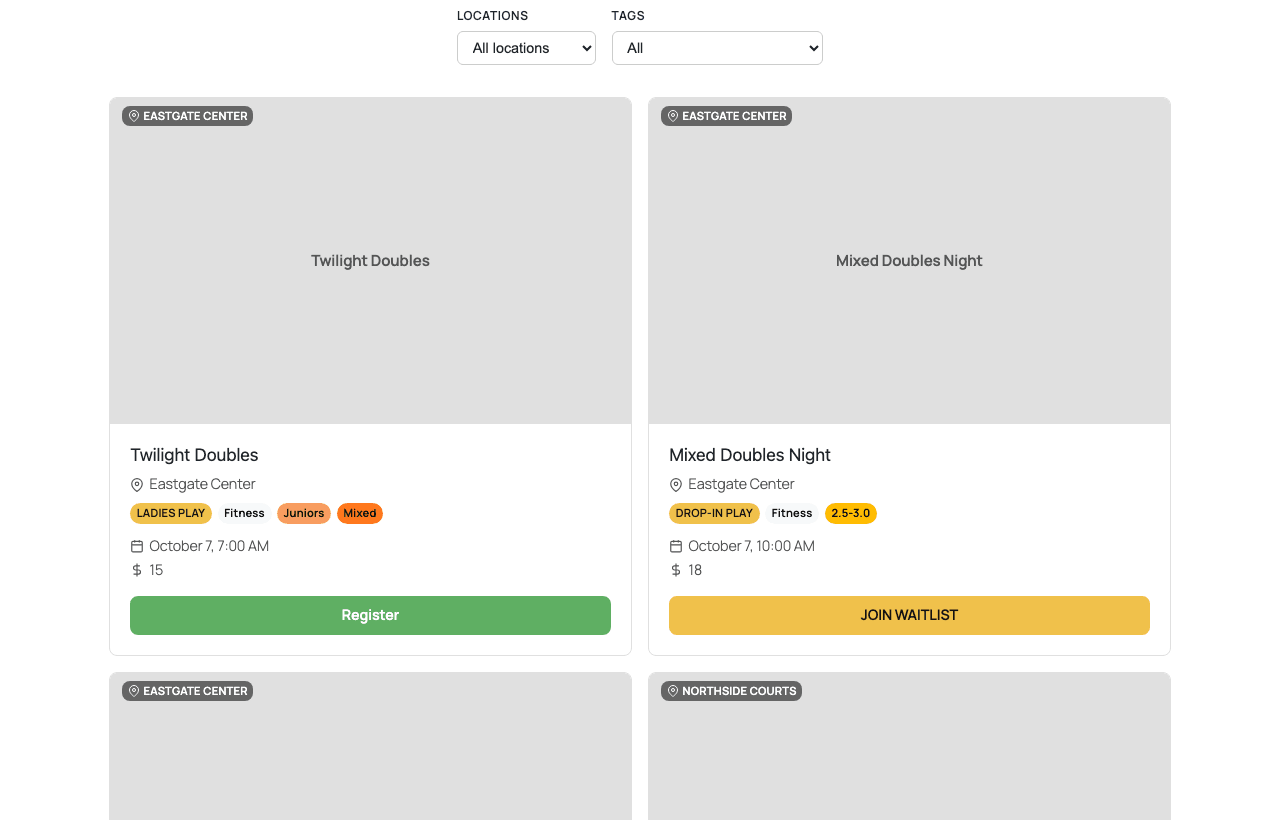
Category List view: location and tag filters above a two-column grid of event cards

Schedule

Events grouped by day, with arrows to move between dates.
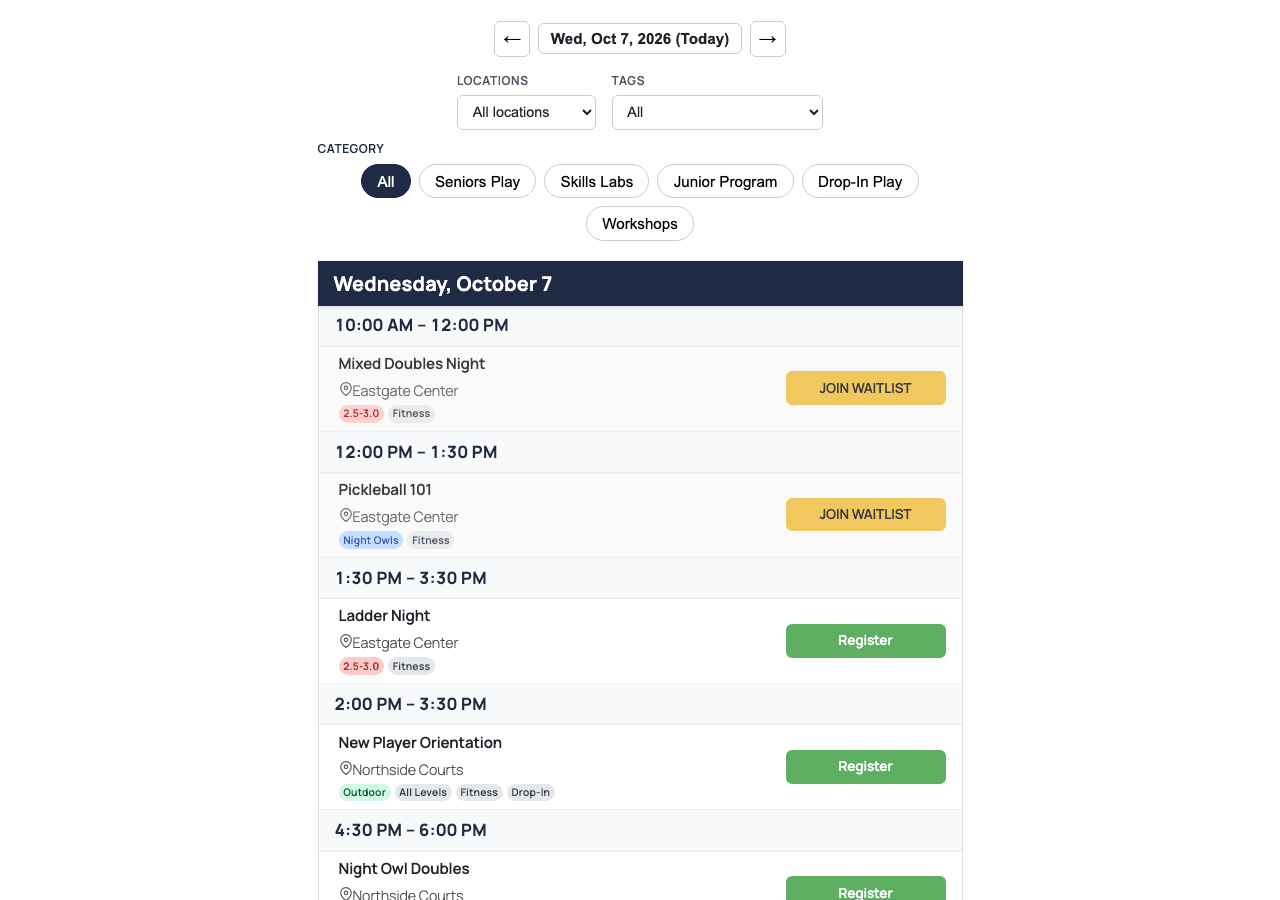
Schedule view: date navigation, filters and category buttons, then the day's events listed by time

Calendar

A month grid. Visitors can switch months and pick a location from the dropdown.
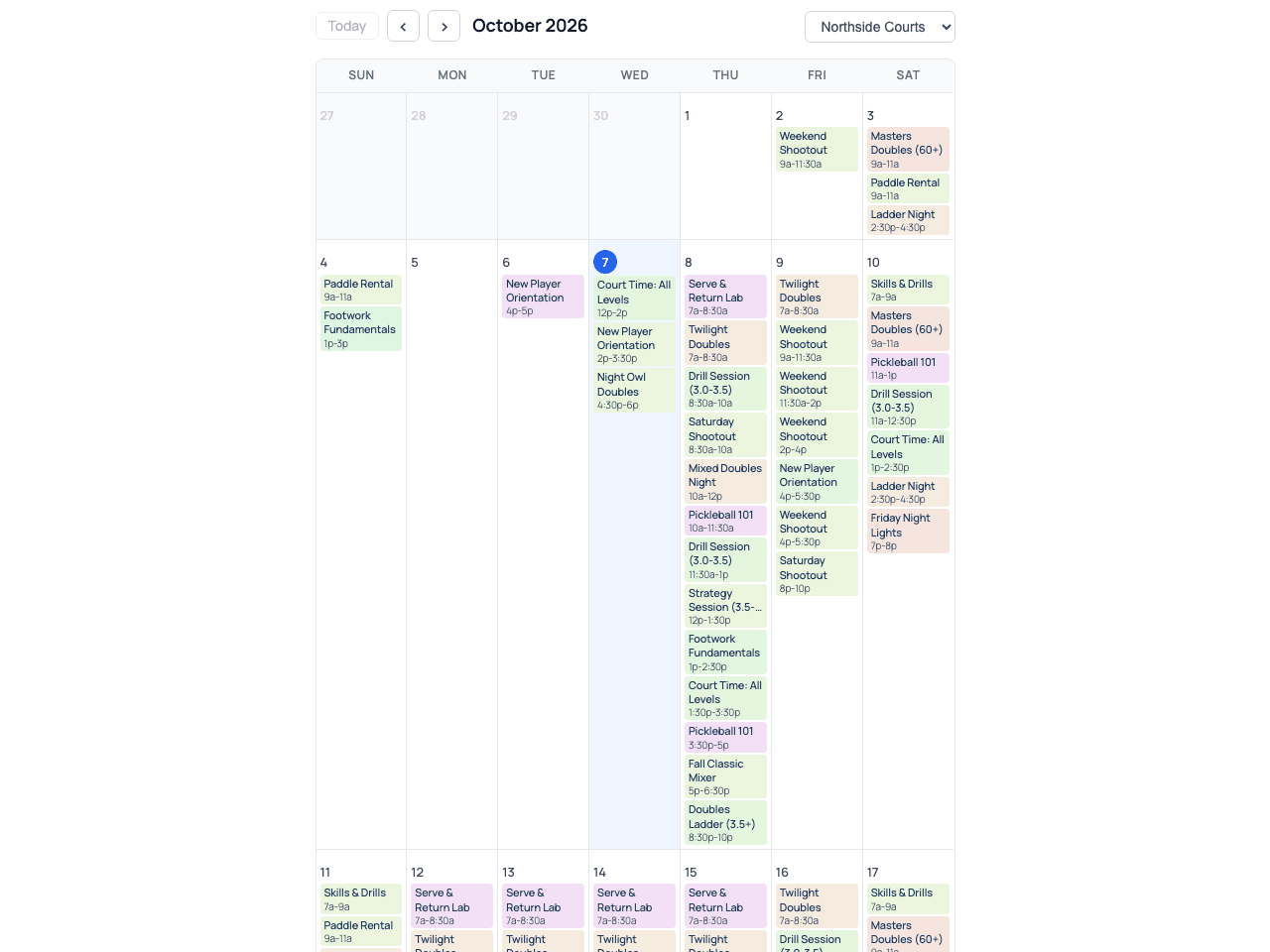
Calendar view: a month grid with events in each day and a location dropdown at the top right

Cards without a photo show the event name on a grey background. To add photos, see Assign event images.

Using a shortcode instead

If your theme or page builder doesn't use the block editor, add a Shortcode block or widget and paste one of these:

[courtflow]
[courtflow view="category-list"]
[courtflow view="schedule"]
[courtflow view="calendar"]

[courtflow] on its own shows the Events Carousel. The block has more options than the shortcode, so use the block where you can.

Next

Assign event images so your cards have photos.

Stuck on a step? Email [email protected] and tell us which guide and step you're on.
