Guide 5 of 6
CourtReserve doesn't send event photos, so you choose them in WordPress. Set an image on one event, on many at once, or save a rule that covers future events too.
Images come from your WordPress Media Library. Cards are wider than they are tall, so landscape photos work best. Events without an image show their name on a grey background.
There are three ways to give events an image, all on CourtFlow Events → Event images:
This guide is for CourtFlow Events 2.3.0 and later. To see which version you have, look at the top right of any CourtFlow page.
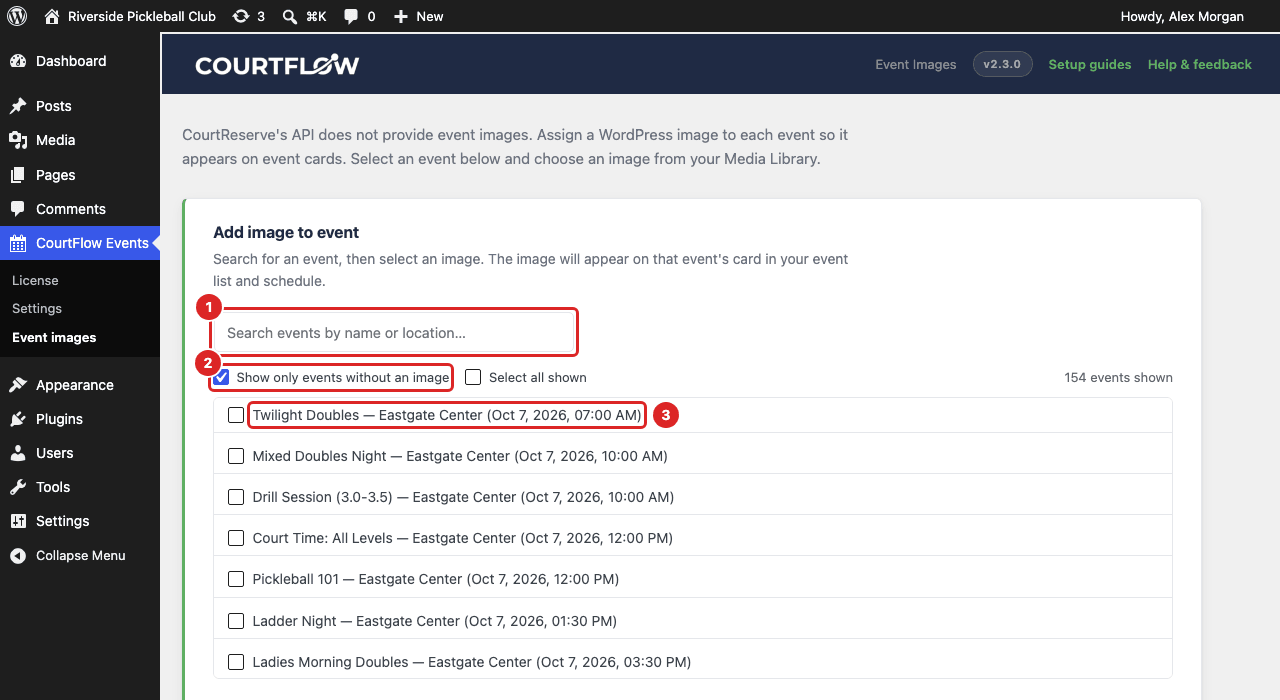
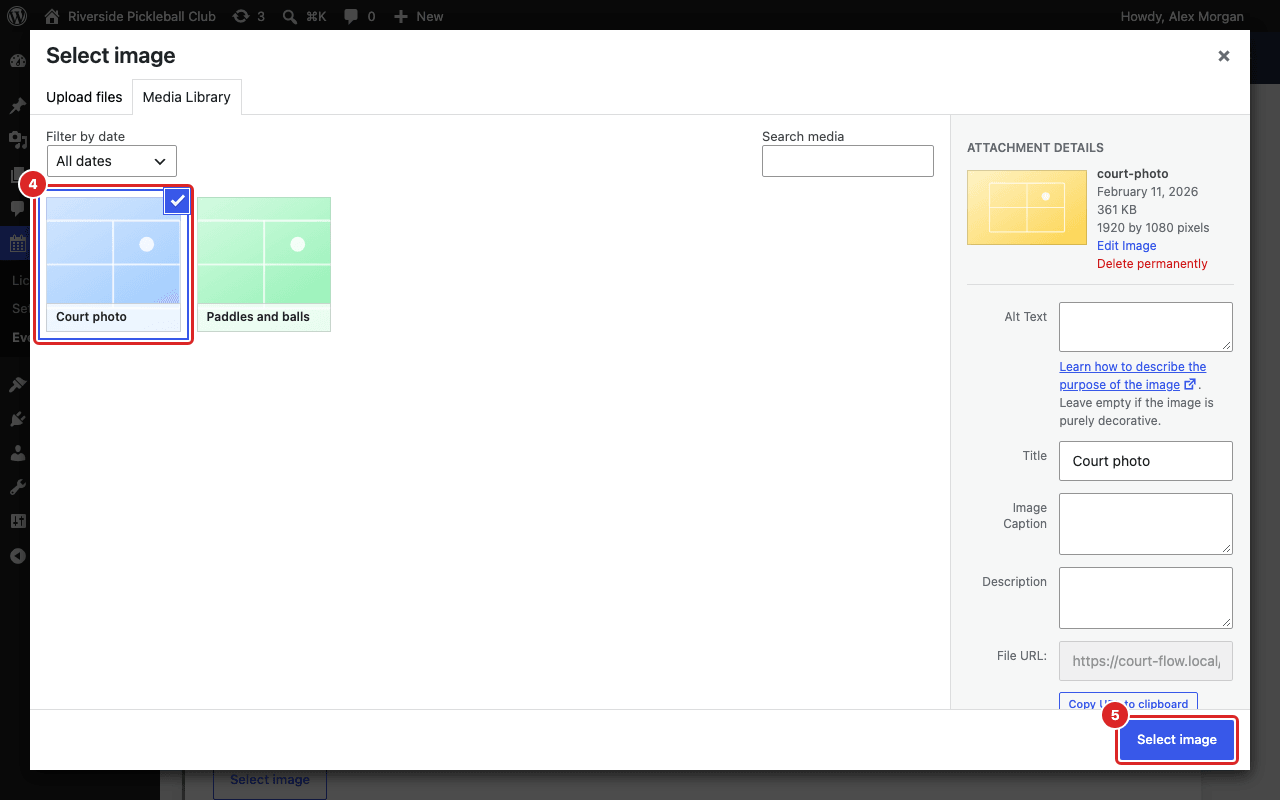
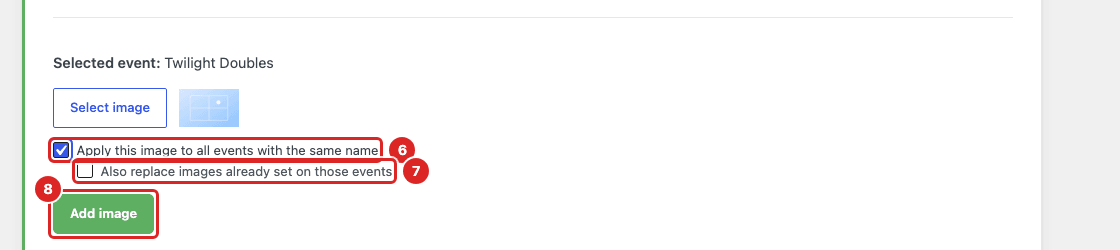
How "same name" works. CourtFlow looks for events in the next 90 days whose name matches exactly (capital letters and extra spaces don't matter), and gives each one the image. Events with a slightly different name, or further out than 90 days, aren't included. For a series that keeps going, a rule is easier: it covers future dates as they appear.
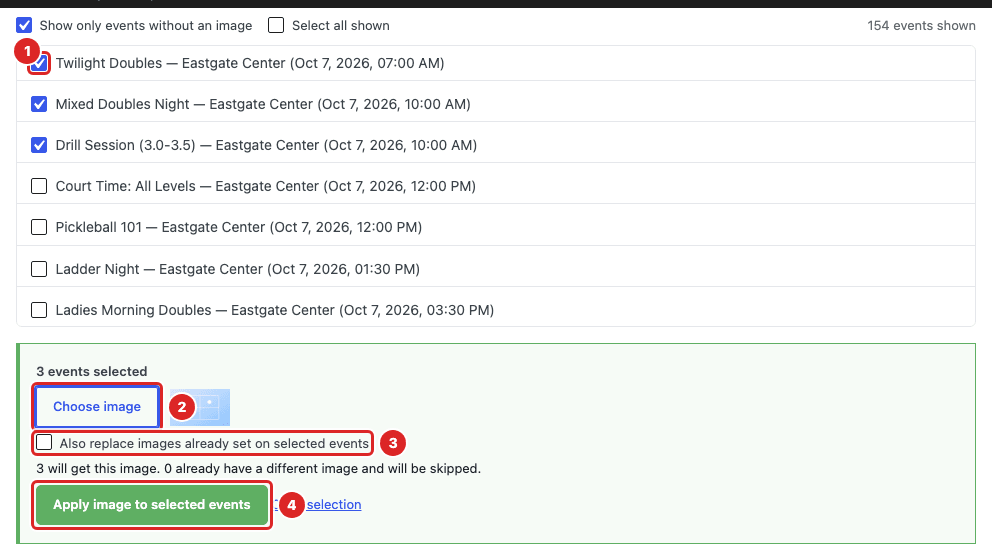
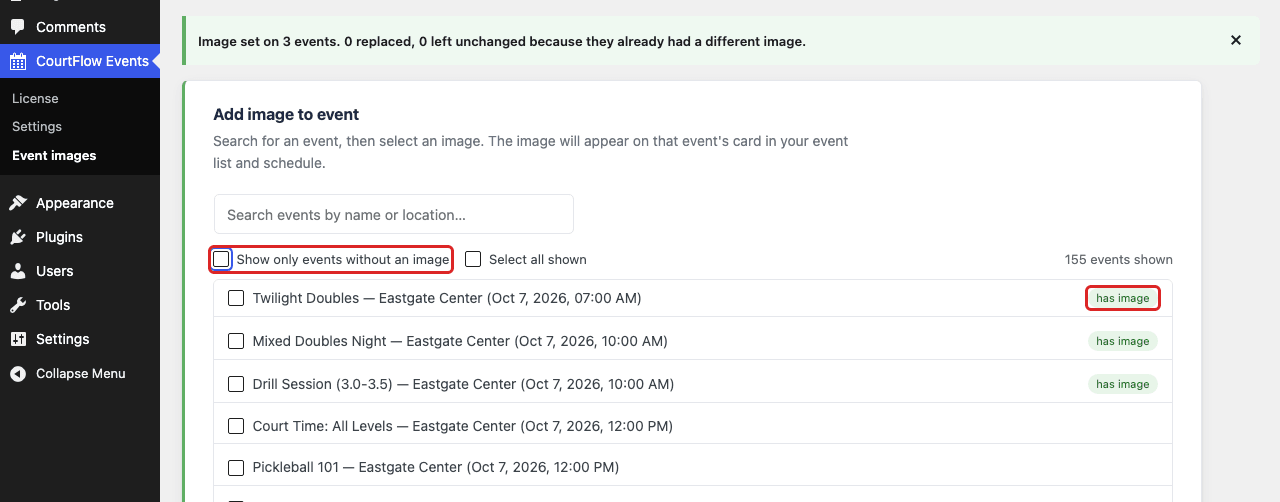
The page reloads with a message like Image set on 3 events. 0 replaced, 0 left unchanged because they already had a different image. The events drop out of the list, since it only shows events without an image. Untick Show only events without an image to see them, marked has image.
To start over, click Clear selection.
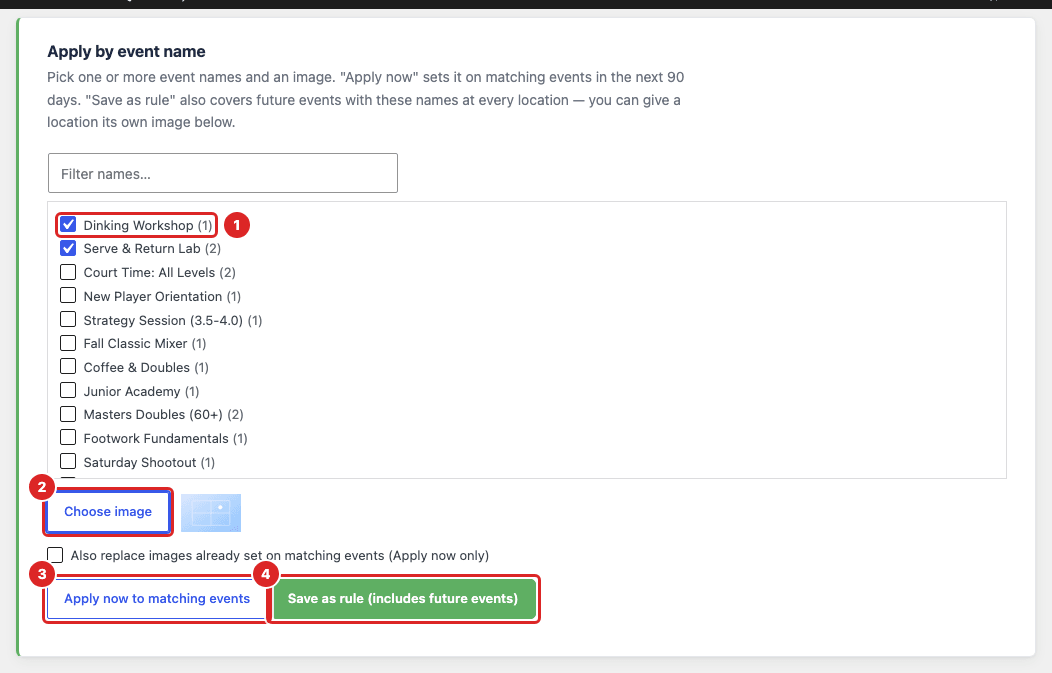
Use the Apply by event name box, further down the same page, when you know the names of the events rather than the dates. It lists every event name in the events loaded above, with the number of upcoming dates in brackets.
Or, to cover future events as well, click Save as rule (includes future events) 4 instead. See the next section.
A rule says "events with these names use this image". It applies to every event with those names, now and in the future, at all your locations. You set it up once, and new dates of a weekly clinic get the photo as soon as they show up on your site.
To use a different photo at one location, for example a picture of that club's own courts:
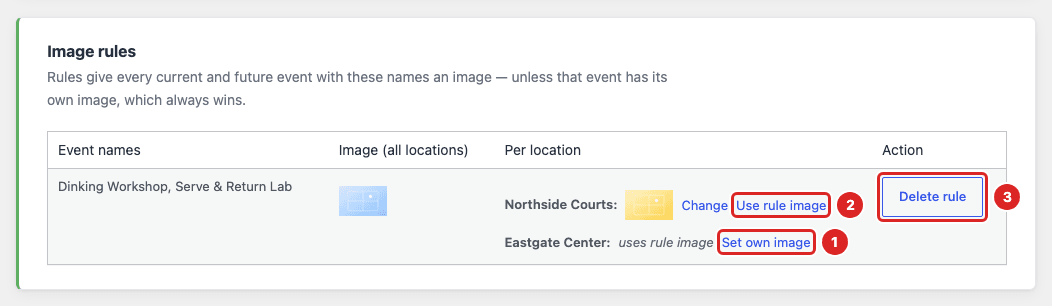
To stop using a rule, click Delete rule 3 and confirm. Deleting a rule never removes images you set on individual events. Events that only had the rule's image go back to the grey background.
Rules match whole names. A rule for "Beginner Clinic" doesn't cover "Beginner Clinic (Private)". Capital letters and extra spaces don't matter. If a series is renamed in CourtReserve, save a rule for the new name.
When more than one image could apply to an event, the card shows the first of these that exists:
So an image you set on one event always beats a rule. Creating or changing a rule never changes an event that already has its own image.
Every image set on an individual event is listed under Event images already set, at the bottom of the page. Click Remove to take an image off an event. It's removed right away, with no confirmation step. To swap in a different image, set the new one on the same event: one at a time always replaces, and the other ways replace only if you tick the replace box.
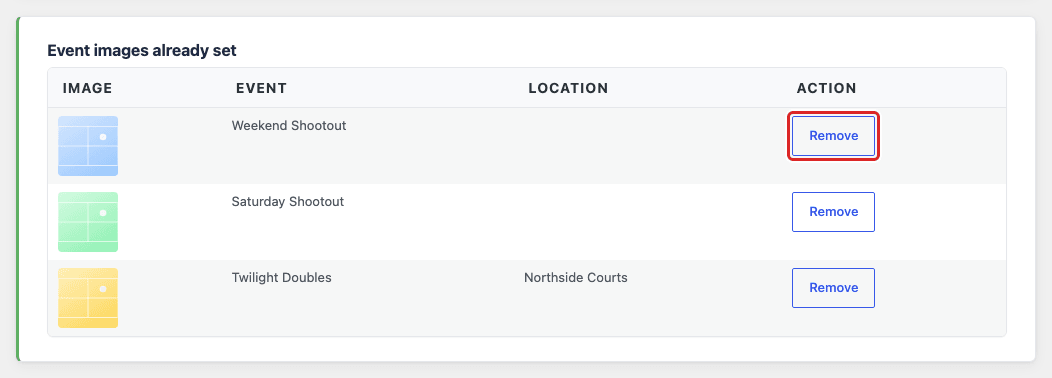
Images from rules aren't listed here; change those under Image rules. If you remove an event's own image and a rule covers that event, the card shows the rule's image instead. Removing an image only takes it off the event card. The photo stays in your Media Library.
Learn how to update the plugin when a new version comes out.
Stuck on a step? Email [email protected] and tell us which guide and step you're on.
