Guide 6 of 6
New versions of CourtFlow Events install from your WordPress Plugins page, the same way as any other plugin. Your setup stays as it is.
Your site checks with CourtFlow for new versions about twice a day. When one is out, WordPress shows it in the usual places: a number on Plugins in the sidebar, and a notice under CourtFlow Events on the Plugins page. Updates need an active license key, so if the license shows anything other than Active or Trial, sort that out first.
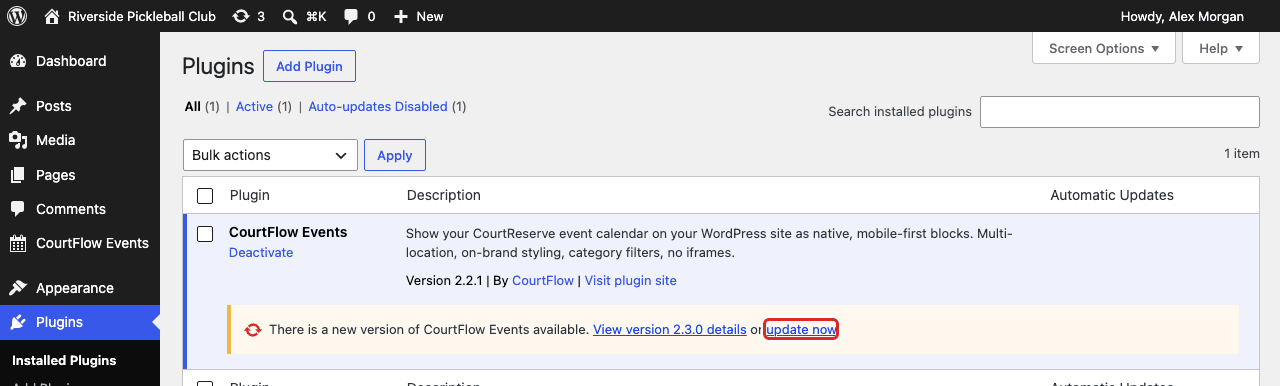
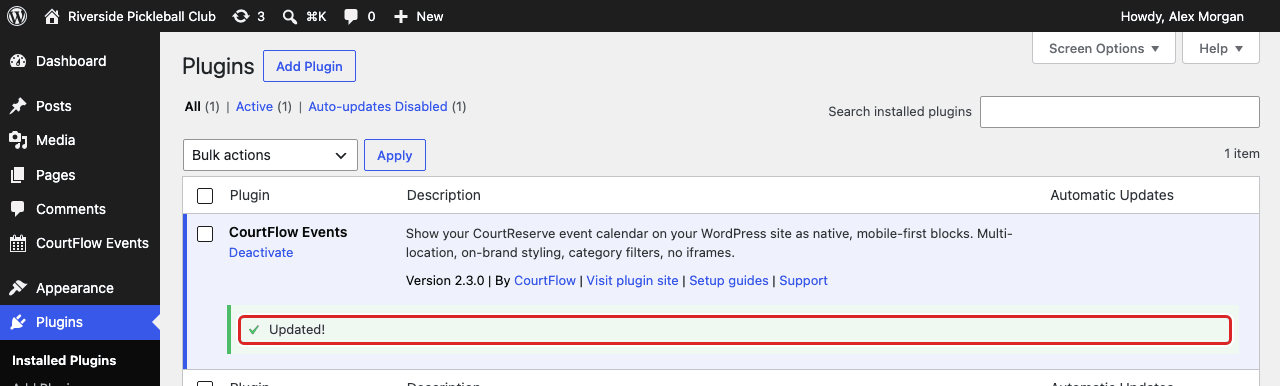
After a few seconds the notice changes to Updated! and the version number goes up. That's it. From 2.3.0 on, the version line under CourtFlow Events also has Setup guides and Support links, so they appear once the update finishes.
To see what's in a new version before or after you install it, read the release notes.
You can also update from Dashboard → Updates, or turn on Enable auto-updates for CourtFlow Events on the Plugins page so WordPress installs new versions for you.
Updating replaces the plugin's files, nothing else. These all stay exactly as you left them:
We test every release by upgrading a working site and checking that its settings, images and event pages come out unchanged. If something does look different after an update, click Help & feedback at the top right of any CourtFlow page (or contact support) and tell us what you see.
Don't delete the plugin to update it. Deleting CourtFlow Events from the Plugins page also deletes its settings, locations and event images. If you ever need to install an update by hand, download the new ZIP from your account page, go to Plugins → Add Plugin → Upload Plugin, upload it, and choose Replace current with uploaded.
Stuck on a step? Email [email protected] and tell us which guide and step you're on.
